Gildam turns a mounted iPhone into a dashcam that records while the app stays open on screen. Mark the moments you want to revisit, then find them again on a map alongside the video once you have arrived. Trim just the part you need and save it to Photos or share it.
Captured from the in-development app in the iOS Simulator. The app interface is currently Korean only; the route and marks are test data.
01 / How it works
Set it before you go. Review it when you arrive.
Gildam is designed to keep your hands off the phone while driving. You set it up before you leave, and you review and edit after the drive is over.
01
Mount it and start recording
Before you set off, mount your iPhone securely and start a drive. Gildam records through the rear camera for as long as the app stays on screen.
02
Mark what you want to remember
A mark is a bookmark pointing to that moment in the original video. We recommend marking only when stopped, or letting a passenger do it.
03
Revisit it in Drive History
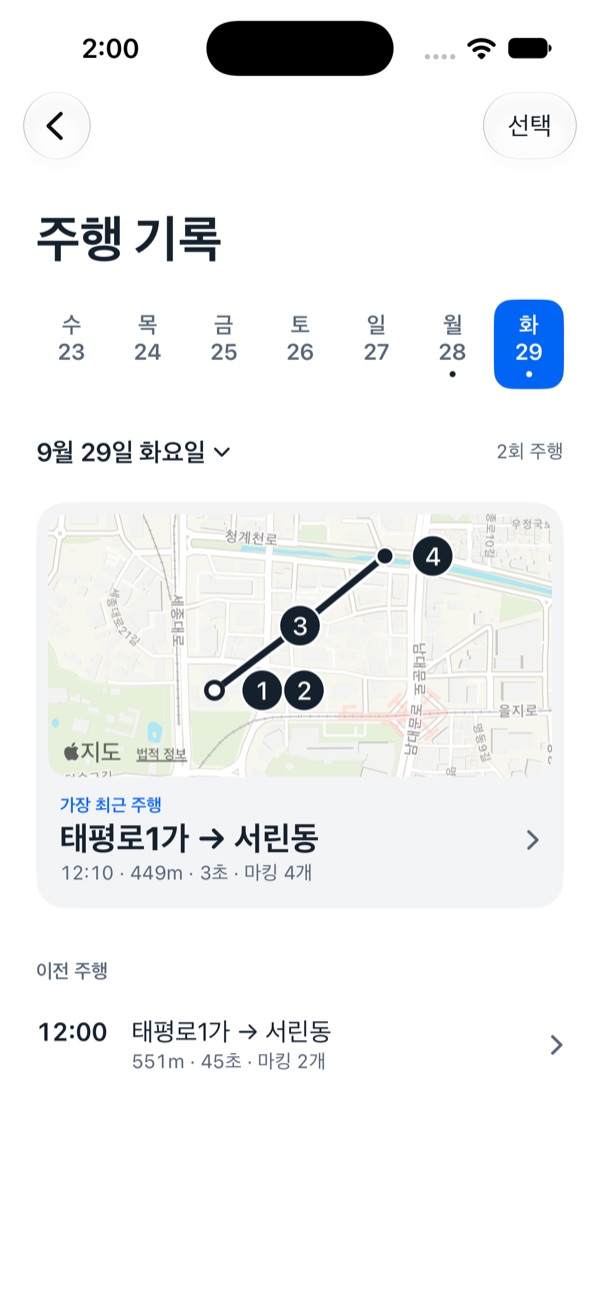
Drives recorded with location show the route and your marks on a map, with the video playing picture in picture. Tap a mark to jump straight to that moment.
04
Trim, save, and share
Select the range you need and save it to Photos or share it. The original recording stays untouched.
Screens in development
iOS Simulator captures. Korean interface; maps and drives are test data.
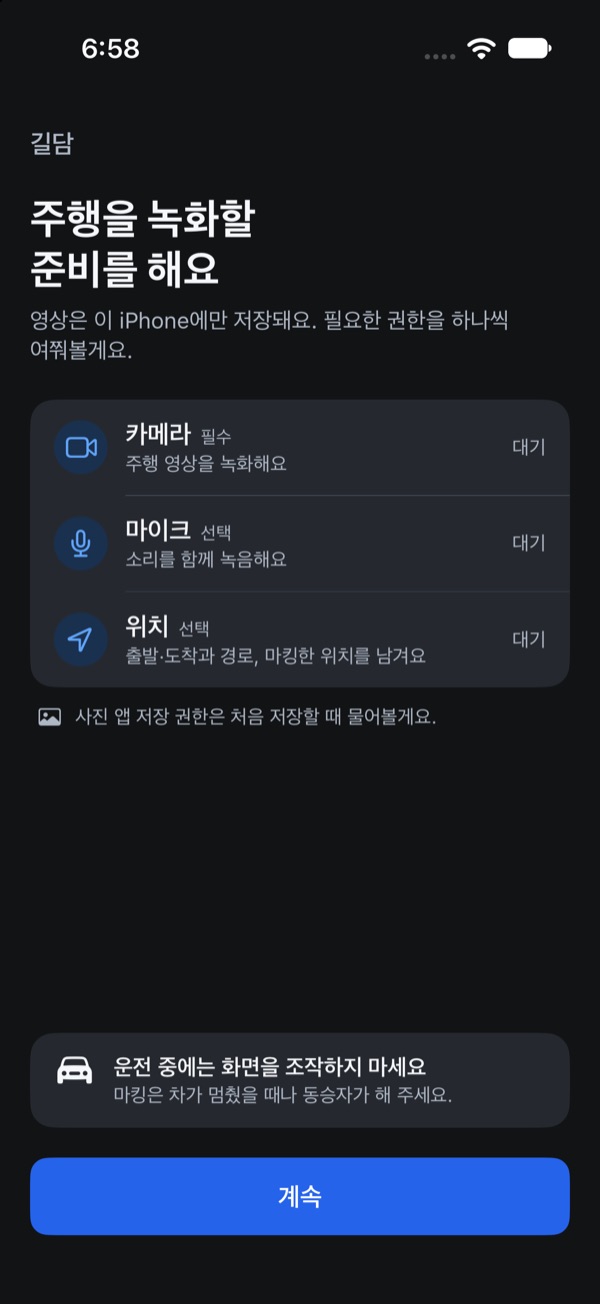
01Before you set offCamera, microphone, and location access, one at a time.
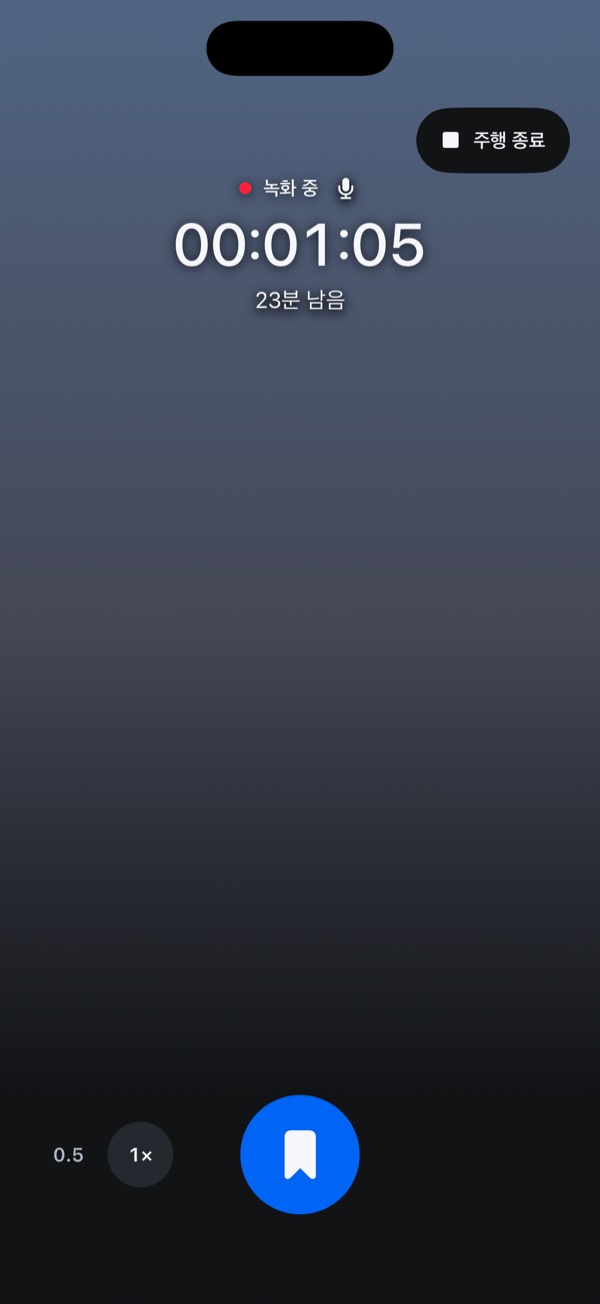
02Recording and markingSee the recording time left, and mark with one large button.
03A quiet clock screenRecording continues; double tap to mark.
04Drive HistoryRevisit drives by date, with their routes and marks.
02 / Features
From recording to sharing, in one app.
This is what is being built right now, described as it is. Details may change before release.
Drive History
Review with the map and video together
For drives recorded with location, a full map shows the route, start and end points, and your marks while the video plays in a small picture-in-picture window. Expand the video and the map floats as the picture-in-picture instead, so you can still see where you were.
Collapsible map PiP
Recorded speed
Location gaps shown as gaps
Range editing
Keep only the part you need
A range opens 30 seconds either side of the playhead; drag its handles to adjust. Saving to Photos keeps the original quality, with an optional date and time stamp. When sharing, choose original, 1080p, or 720p. Video is never upscaled.
Preview the selection
Optional timestamp
Originals preserved
Recording
4K at 30 fps, or 1080p at 60 or 30 fps
Choose resolution and frame rate within what your iPhone supports. The default is 1080p at 30 fps, and you can zoom or switch lenses mid-recording. Portrait or landscape mounting is set in Settings.
Marks
Bookmarks, not copies
A mark does not cut or duplicate footage; it simply remembers a moment in the original. Even when the screen has dimmed, a double tap adds a mark without interrupting the recording.
Location
Routes drawn only from what was recorded
With location access, Gildam saves the route and where each mark was made. Stretches without a location fix are never guessed or filled in, and recording and marking carry on without location.
Display
A quiet clock while recording
After the delay you choose, the preview fades to a dark clock screen. A single tap brings it back, and recording carries on throughout.
Storage
Know how much time you have left
While recording, Gildam shows the recording time remaining, and stops recording if free space drops below 2 GB so existing footage is protected. Automatic cleanup of older drives is off by default.
Recovery
Recovering what can be read
If the app quits unexpectedly, it is designed to recover the readable part of the recording on next launch, along with any marks inside it.
What Gildam does not do
We would rather be clear up front about what is not supported.
Background recording when the app is not on screen
Automatic collision or accident detection
Parking mode recording
Automatic plate recognition, or legible plates at night
Cloud backup or account sync
Submitting footage directly to authorities
03 / Release log
Built in shipped builds.
Internal TestFlight · Not yet submitted to App Review
Gildam is not yet on the App Store. TestFlight builds go to an internal test group while recording, review, and range saving are refined, and an App Store 1.1 build has been uploaded ahead of submitting it for review. When a public download opens, this page will say so first.
Commits
224
Version tags
5
Latest
1.1
From the private GitHub repository, Sep 23 to Oct 8, 2026.
Aug 28, 2026
JP LAB founded
The software studio behind Gildam registered as a sole proprietorship.
Sep 28 – Oct 3 · builds 7–12
Internal TestFlight builds
TestFlight builds started going to an internal test group. This is not a public beta.
Oct 3 · v1.0.13
TestFlight on every version tag
Pushing a version tag now produces an internal TestFlight build. Routes are colored by recorded speed.
Oct 5 · v1.0.14 – v1.1.1
Fullscreen playback with a map PiP
Added a collapsible map PiP to fullscreen playback, moved to version 1.1, and kept the pinch hint clear of the recording controls.
Oct 8 · v1.1.2
A compact player bar on the portrait map
Made the playback bar smaller on the portrait map.
Oct 8 · 1.1 (build 23)
App Store 1.1 build uploaded
A core-features 1.1 build, store listing, support page, and privacy policy are ready. It has not been submitted for review yet.
Next
Report drafts with Claude
Build and evaluate the Claude API report-drafting feature described below. No release date yet.
04 / Claude plan
From footage to a report draft, with Claude.
Reporting a traffic incident in Korea, for example through Safety e-Report, means scrubbing the footage again and writing the date, place, and what happened by hand. Gildam already keeps the marked moment, the recorded location and speed, and the original video. We are preparing a feature that uses the Claude API to turn that material into a Korean report draft the driver can edit.
Planned · Not in the app yet
01
The driver picks the moment
It starts only after the drive, from a marked moment or a range the driver chooses. It never runs while driving.
02
The app gathers the evidence
A few frames from the range are bundled with the recorded time, location, speed, and a short note from the driver. Ranges without location stay blank.
03
Claude writes a draft
Claude reads the images and records and fills a fixed Korean template: date and time, place, and a description. Anything the footage and records do not show is left as “needs checking.”
04
The driver checks and submits
The driver edits the draft, copies it, and pastes it into the reporting service. Gildam never submits on their behalf.
What it should give drivers
Less time rewatching footage to write a report, and the date and place copied accurately from the recording instead of from memory.
Sends only chosen frames and records, only on request
Never uploads the full video to a server
Makes no violation or legal judgment
Does not guess unclear details such as plates
Exploring ways to minimize location and vehicle data sent
The driver confirms the facts and submits
05 / Who makes it
JP LAB제이피랩
JP LAB is a small software studio making iOS apps. Planning, design, and development of Gildam are all done in house.
Protect the original footage. Show missing location as missing. Never promise performance that has not been verified. These are the standards Gildam is built to.
Does it keep recording if I close the app or switch to another one?
No. Gildam records only while the app is on screen. If you switch apps or a call interrupts recording, the footage up to that point is saved and closed, and you need to resume recording yourself.
What should I do before I start driving?
Before you set off, mount your iPhone securely where it does not block your view, check that the portrait or landscape orientation in Settings matches how it is mounted, and then start recording. The app does not follow device rotation, so a mismatch saves the video rotated.
Long recordings need plenty of free storage and power. Do not operate the app while driving; add marks only when stopped or with a passenger.
Will it automatically keep footage if there is an accident?
No. There is no collision detection or automatic incident saving. Recordings stay on your iPhone until you delete them, or until automatic cleanup removes them if you have turned that setting on.
Does Gildam guarantee recording or keep me safe?
No. Gildam is still in development, and depending on device condition, heat, storage, permissions, and mounting, recording may stop or miss the moment you wanted. It is not a substitute for a dedicated dashcam or any safety device, and safe driving remains the driver's responsibility.
Can I report an incident straight from the app?
Gildam cannot submit footage to authorities. Save or share the range you need, then attach it yourself following the instructions of the service you are using. A report-drafting feature is planned; even then, the driver submits the report themselves.
Will license plates be readable at night?
That cannot be guaranteed. Image quality depends heavily on the iPhone camera, lighting, distance, speed, and the condition of the windshield. Gildam does not read plates automatically either.
Can I use it without allowing location access?
Yes. Recording and marking work without location; those drives simply open straight in the video player, without a map. If you deny microphone access, video is recorded without sound.
Where is my footage stored?
On your iPhone. There is no account and no cloud upload; saving to Photos and sharing happen only when you choose to.
When can I download it?
There is no public download yet. An App Store 1.1 build has been uploaded ahead of review, but there is no release date. Once there is, it will be announced on this page.